New for Plan Year 2027: These steps apply to agents and brokers who held a Plan Year 2026 Exchange agreement. If you did not, CMS has temporarily paused new Federally-facilitated Marketplace registrations through February 1, 2027, and completing the steps below will not result in an executed agreement. See CMS Pauses FFM Registration for New ACA Agents Through February 2027 for who is affected, the State-based Exchange exception, and what your options are for this Open Enrollment.
Plan Year 2027 Marketplace Registration and Training for Returning Agents and Brokers
These instructions are for agents and brokers who successfully completed Plan Year 2026 Marketplace registration and training and are returning for Plan Year 2027.
Returning agents and brokers must complete the Plan Year 2027 registration process, including refresher training, the required exam, and applicable Marketplace Agreements.
Important: Completing or attending a CMS webinar does not satisfy the Marketplace registration and training requirements. You must complete the required steps through the Marketplace Learning Management System (MLMS).
2027 Marketplace Registration Overview
Returning agents and brokers must complete the following seven steps:
- Create or sign in with Login.gov or ID.me credentials.
- Link your Login.gov or ID.me credentials to your existing CMS Enterprise Portal account.
- Request the Agent and Broker Training Access role.
- Complete your Agent and Broker Profile in the MLMS.
- Complete Marketplace training in the MLMS.
- Read and accept the applicable Marketplace Agreement(s).
- Confirm completion of your registration and access your completion certificate.
Step 1: Create or Sign In with Login.gov or ID.me
Go to the CMS Enterprise Portal and select Sign In.
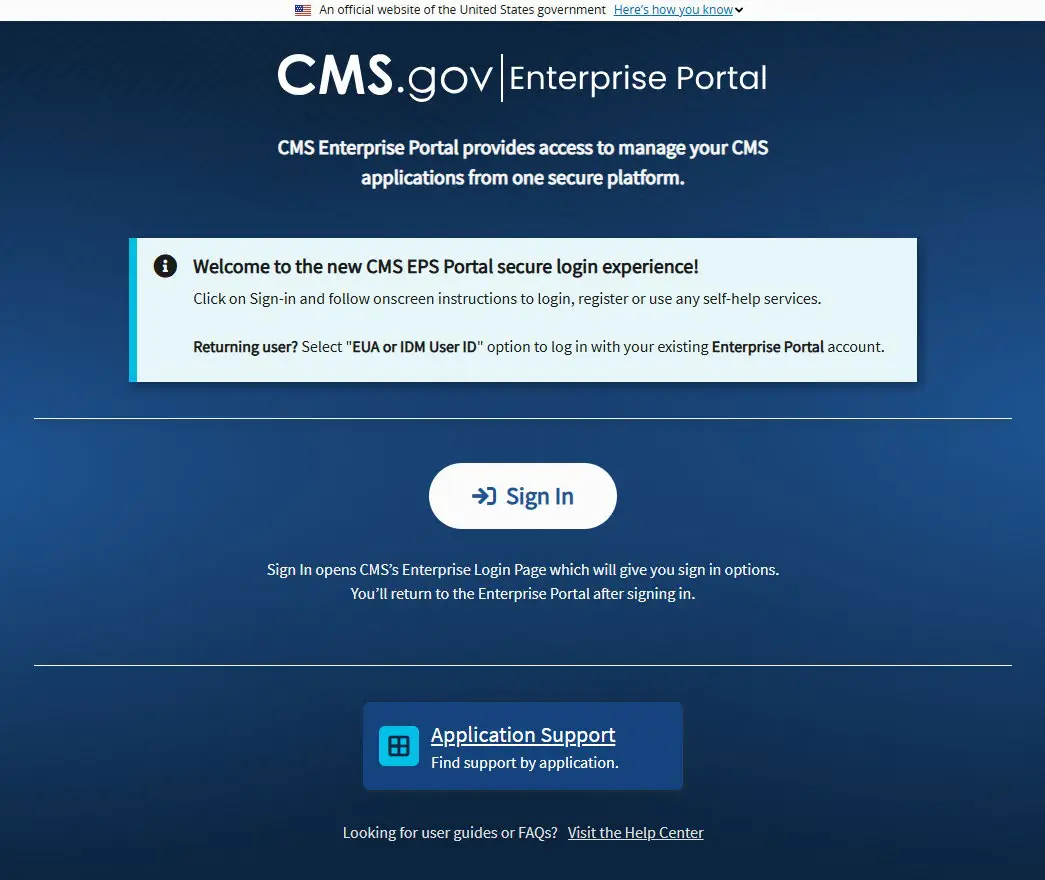
You may use either Login.gov or ID.me. You only need one of these accounts.
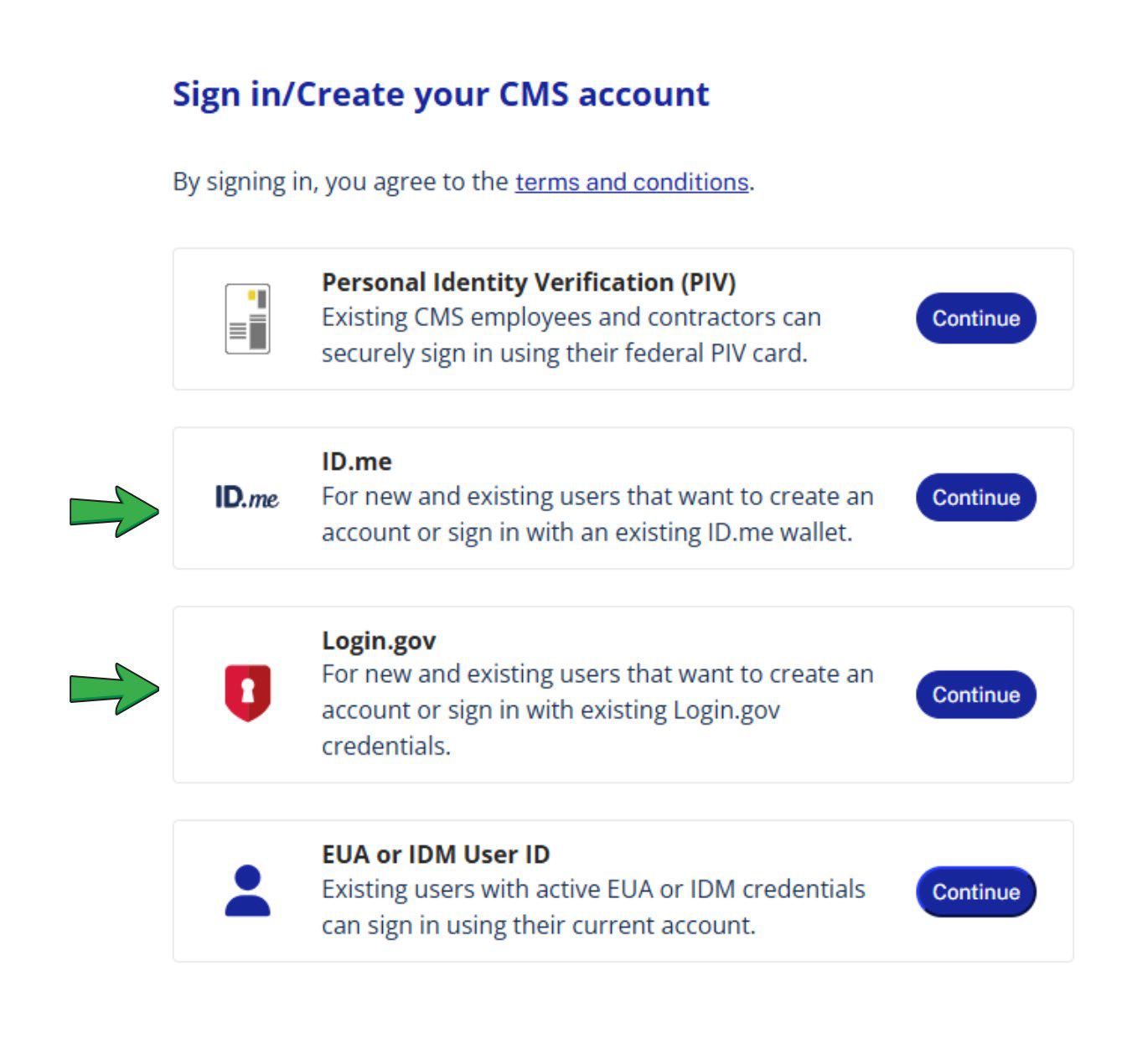
If You Use Login.gov
If you already have a Login.gov account:
- Enter your email address.
- Enter your password and continue through the sign-in process.
If you have never used Login.gov:
- Select Create an account.
- Enter your email address.
- Select your preferred language.
- Accept the Login.gov Rules of Use.
- Select Submit.
- Follow the remaining prompts to finish creating your account.
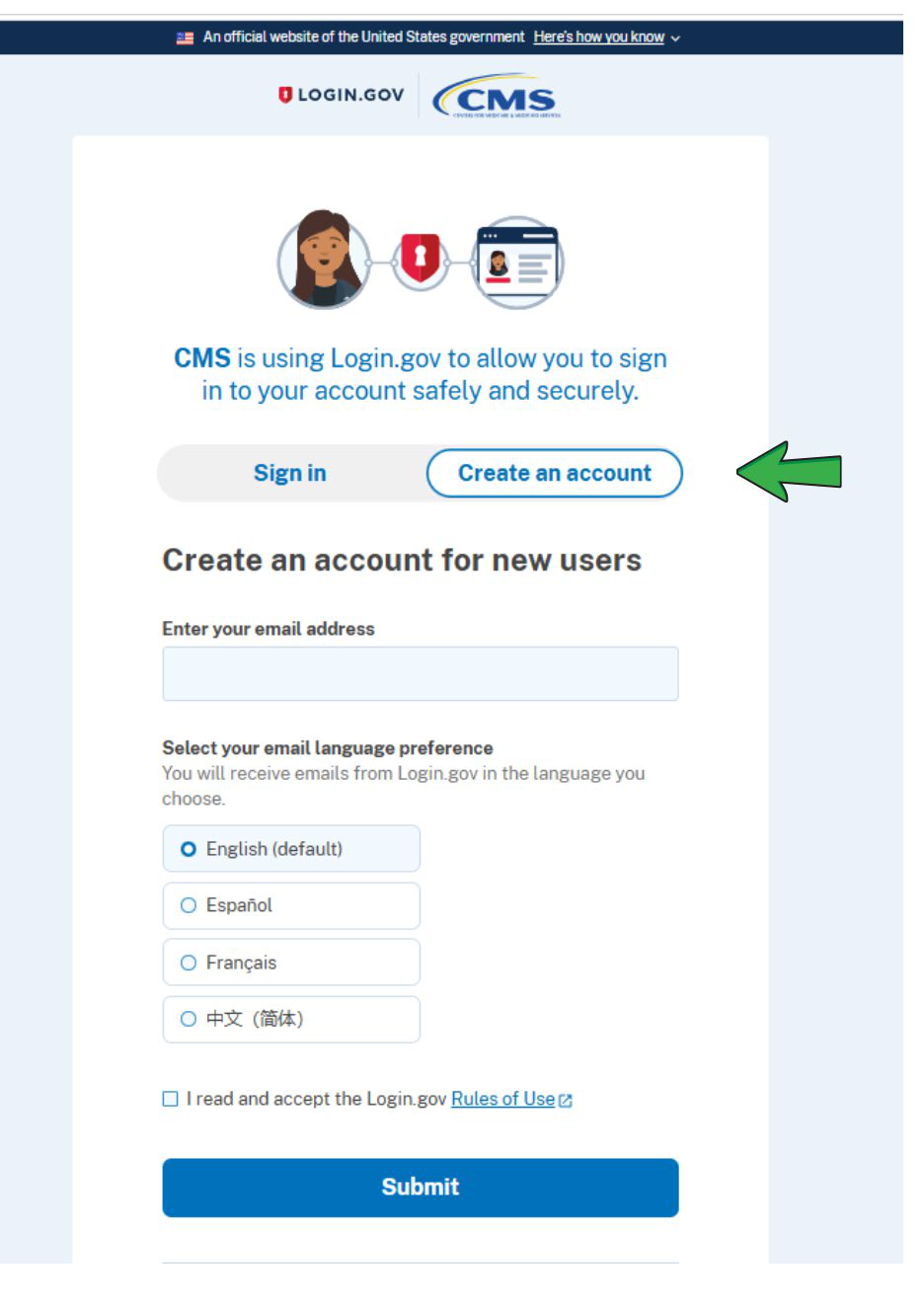
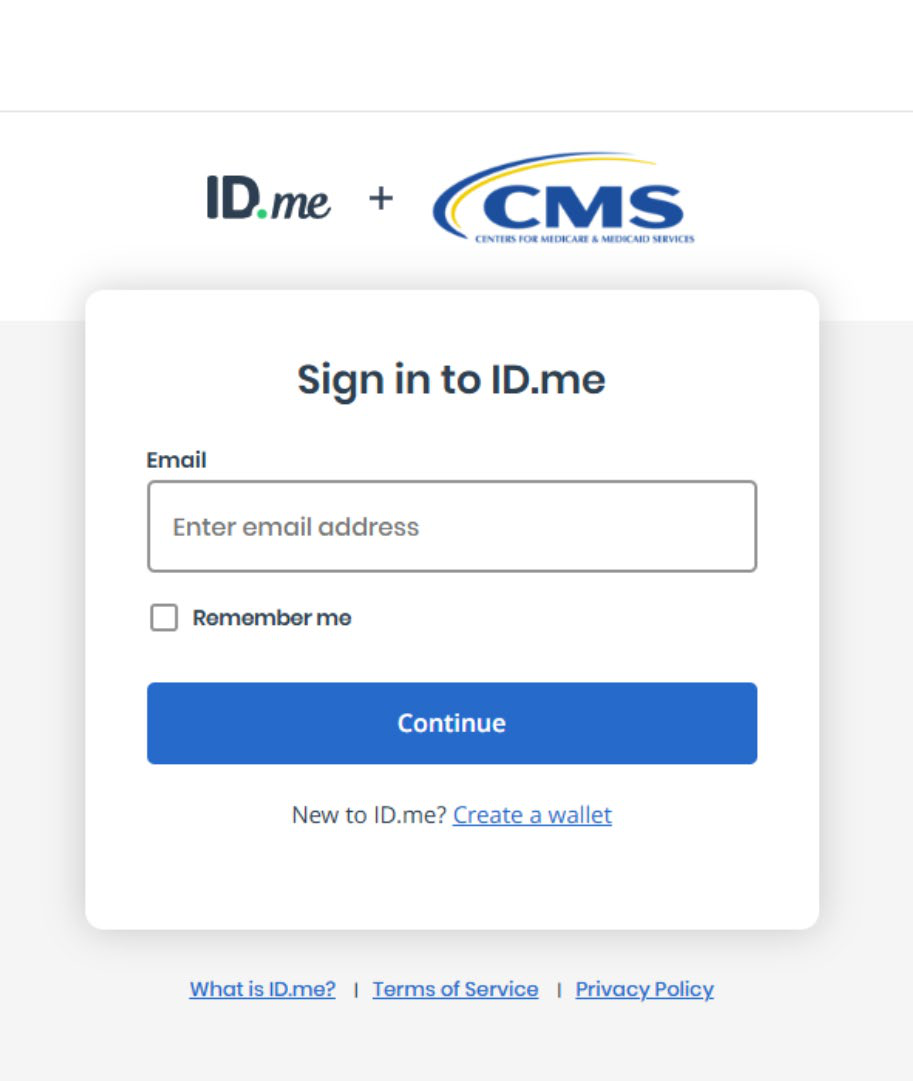
If You Use ID.me
If you already have an ID.me account:
- Enter your email address.
- Enter your password and continue through the sign-in process.
If you have never used ID.me:
- Select Create a wallet.
- Enter your email address.
- Create a password.
- Accept the ID.me Terms of Service and Privacy Policy.
- Follow the remaining prompts to complete account setup and identity verification.
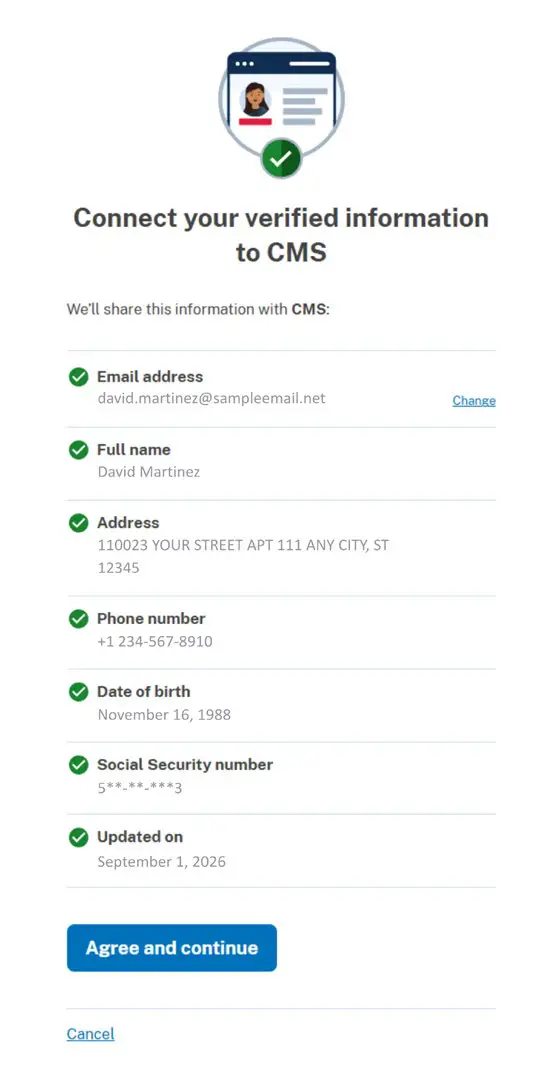
Connect Your Verified Information to CMS
During the setup process, you will be asked to authorize CMS to access your verified information. Review the information carefully, including:
- Email address
- Full name
- Address
- Phone number
- Date of birth
- Social Security number
After confirming the information is correct, select Agree and continue.
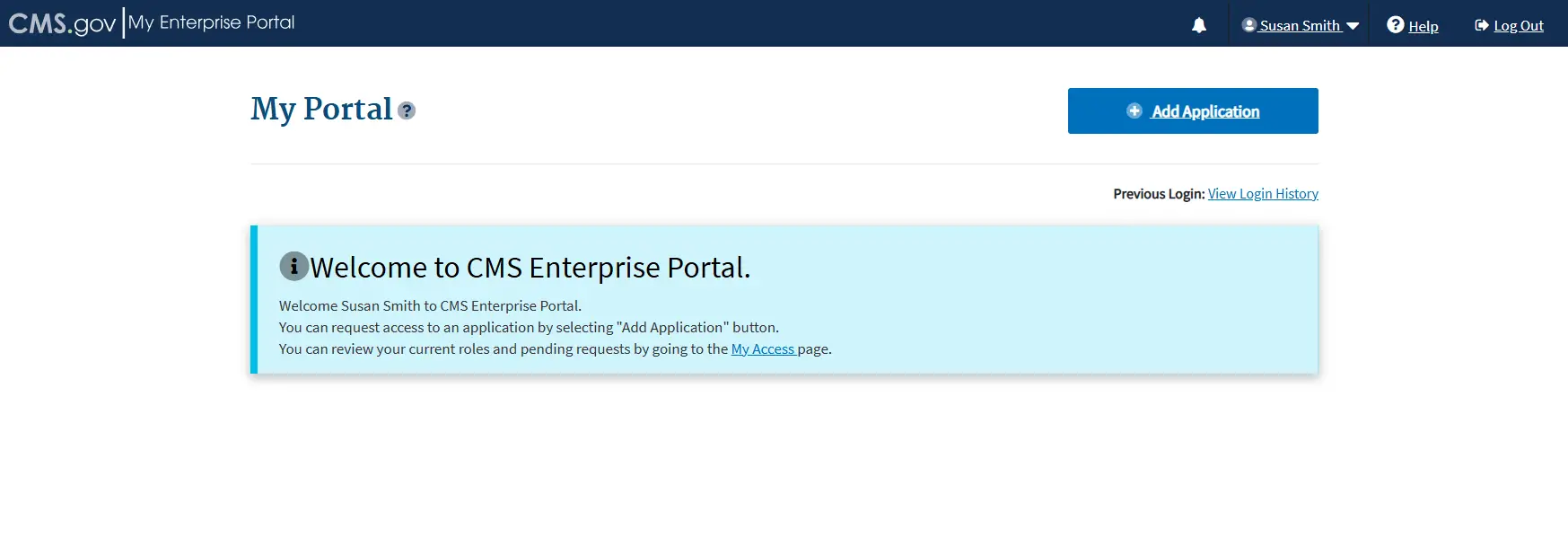
When account setup is complete, you will be redirected to the CMS Enterprise Portal.
Important: Before proceeding to the next step, make sure you know the password for your existing CMS Enterprise Portal/IDM account. You will need it when linking your existing account.
Step 2: Link Your Login.gov or ID.me Account to Your Existing CMS Enterprise Portal Account
Returning agents and brokers must link their Login.gov or ID.me credentials to their existing CMS Enterprise Portal account.
- Sign in to the CMS Enterprise Portal using your Login.gov or ID.me credentials.
- If CMS identifies an existing account, you will receive an Account found message.
- Select Start linking new sign-in option.
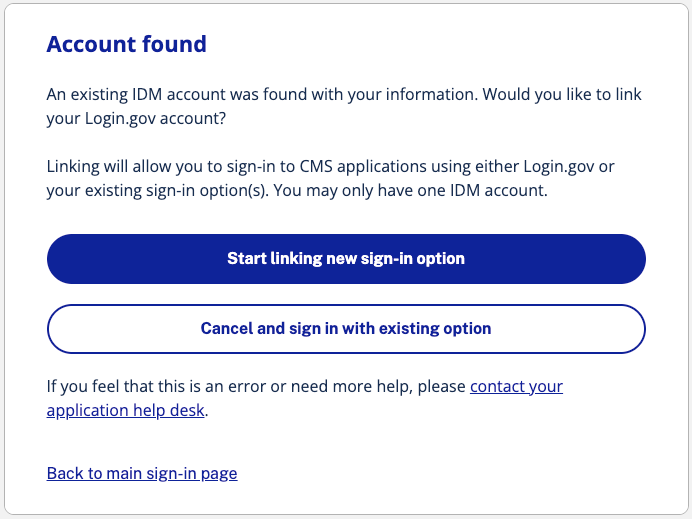
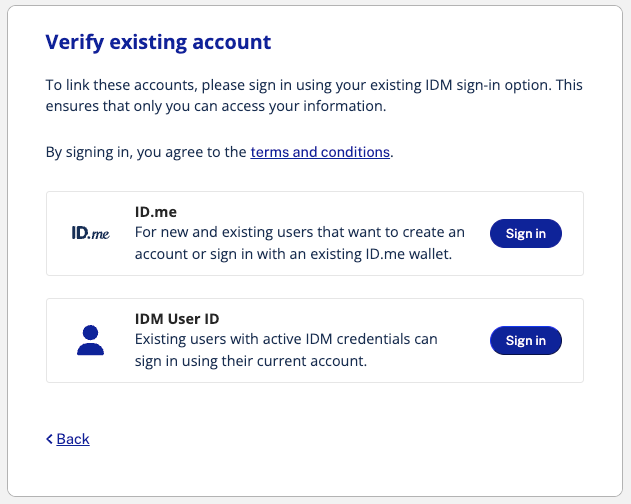
- On the account verification screen, select Sign in next to the IDM User ID option.
- Sign in using your existing CMS Enterprise Portal/IDM credentials.
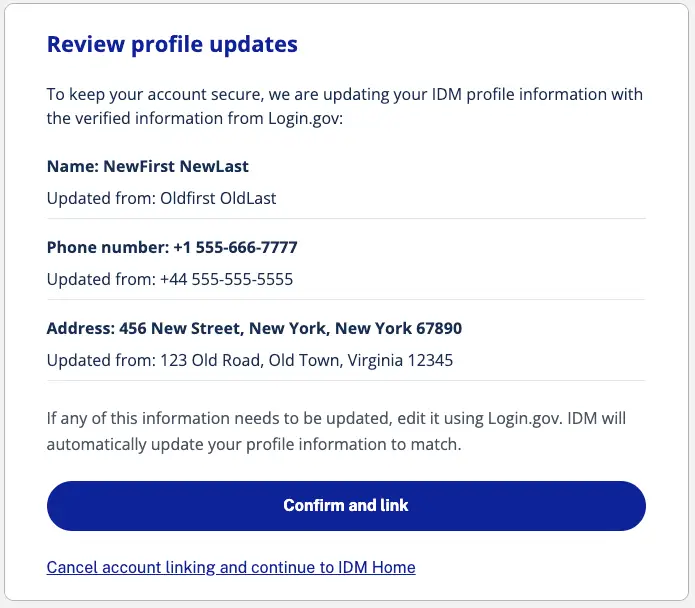
- Review the profile information that will be updated when your accounts are linked.
- Select Continue and link or Confirm and link to complete the process.
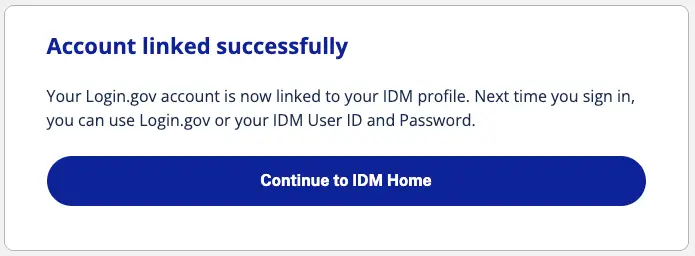
- When the account-linked confirmation appears, select Continue to IDM Home.
Important: Changes made to the profile attributes of the IDM account as part of the linking process are permanent and cannot be undone. Review the information carefully before confirming.
Step 3: Request the Agent and Broker Training Access Role
After linking your accounts, request access to the Marketplace training system.
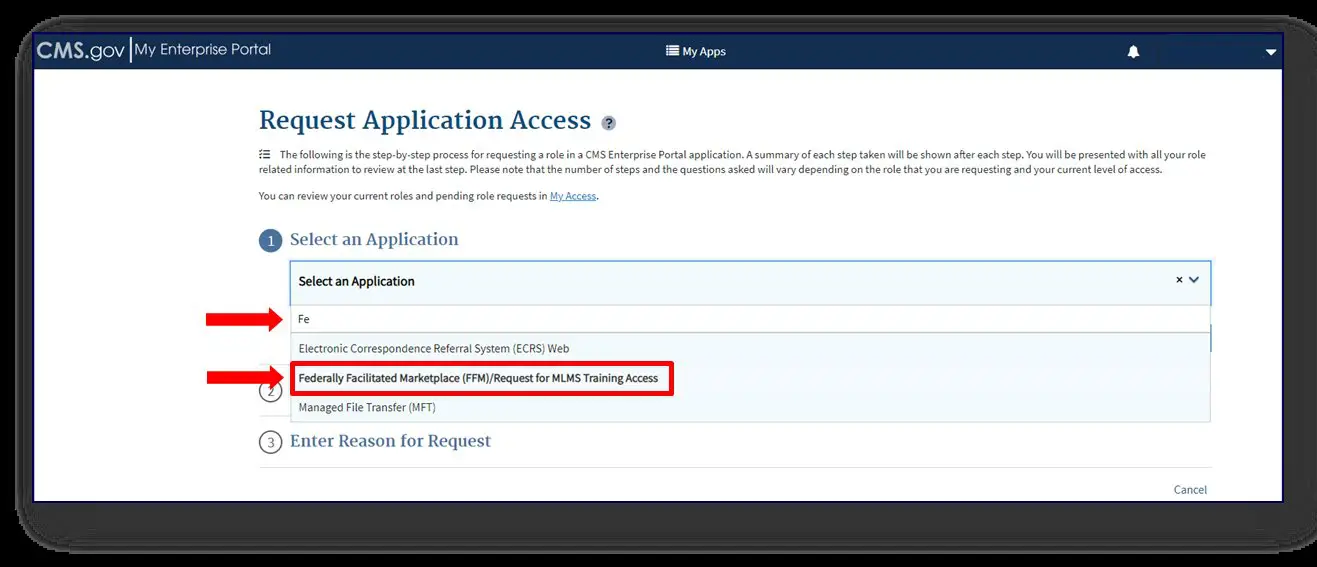
- From the CMS Enterprise Portal, open the application access area.
- Enter Fed in the Access Catalog search field.
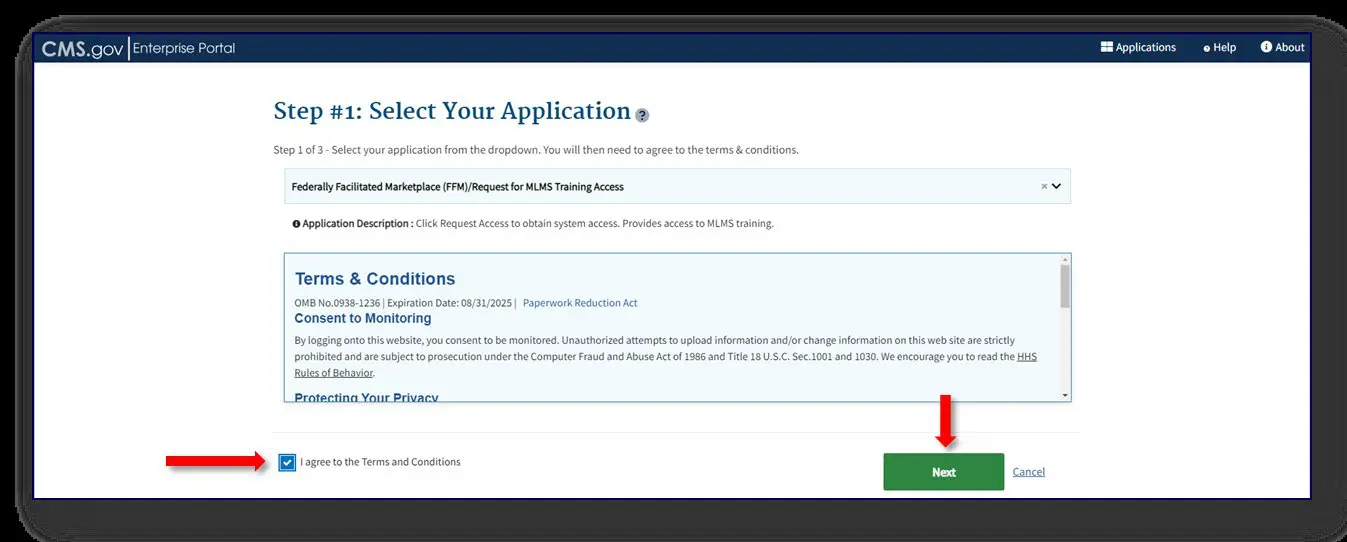
- Select Federally Facilitated Marketplace (FFM)/Request for MLMS Training Access.
- Select Next.
- Review the Terms & Conditions.
- Check the box confirming I Agree to the Terms and Conditions.
- Select Next.
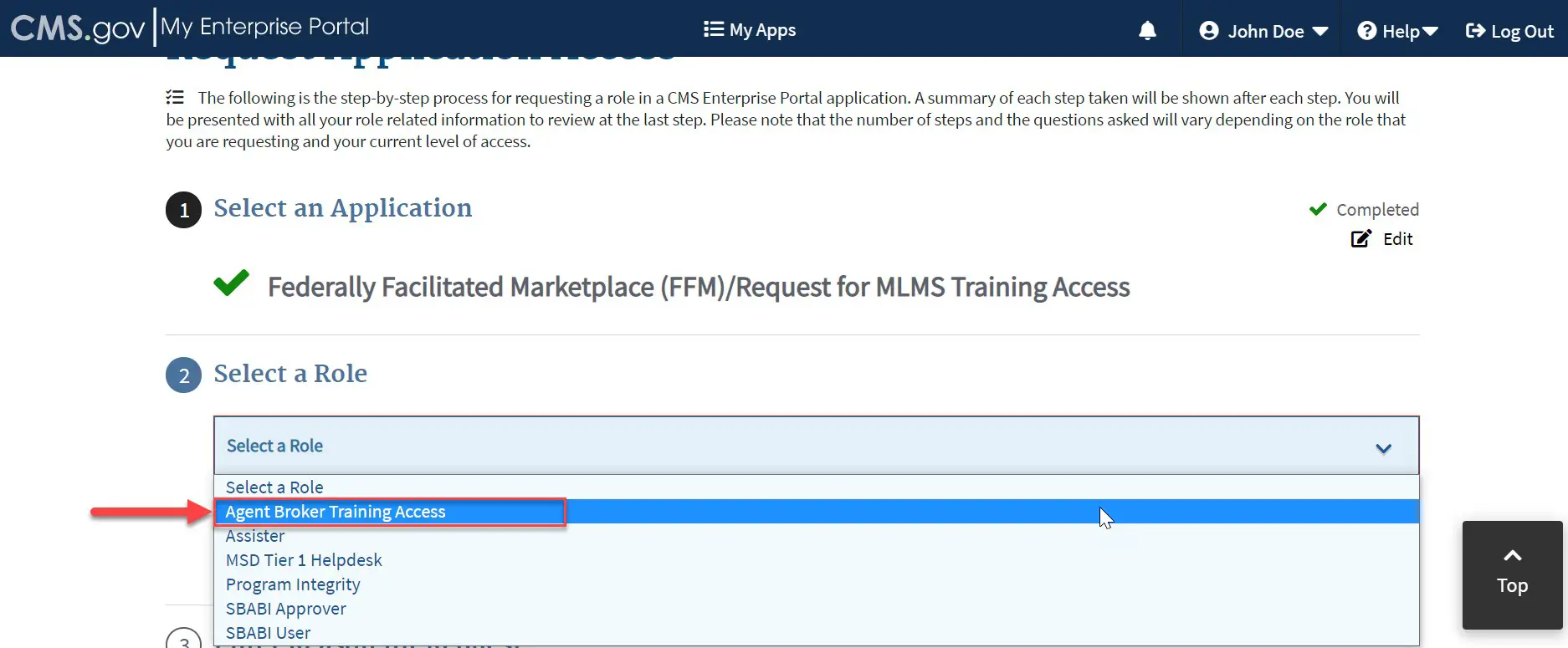
- From the Select a Role menu, choose Agent Broker Training Access.
- Select Next and complete the access request.
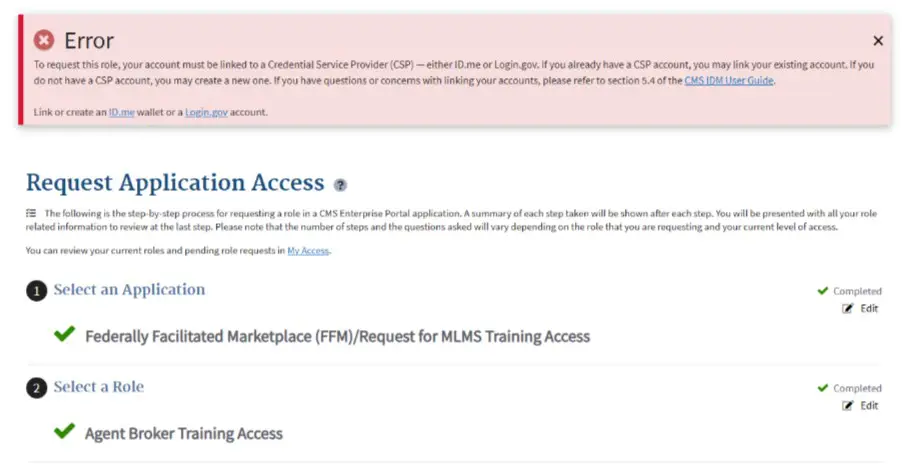
Important: You must complete the account-linking process in Step 2 before requesting this role. If your account has not been linked, you may be prevented from obtaining the training role or accessing the MLMS.
Step 4: Complete Your Agent and Broker Profile in the MLMS
After receiving access, update your MLMS profile before beginning training.
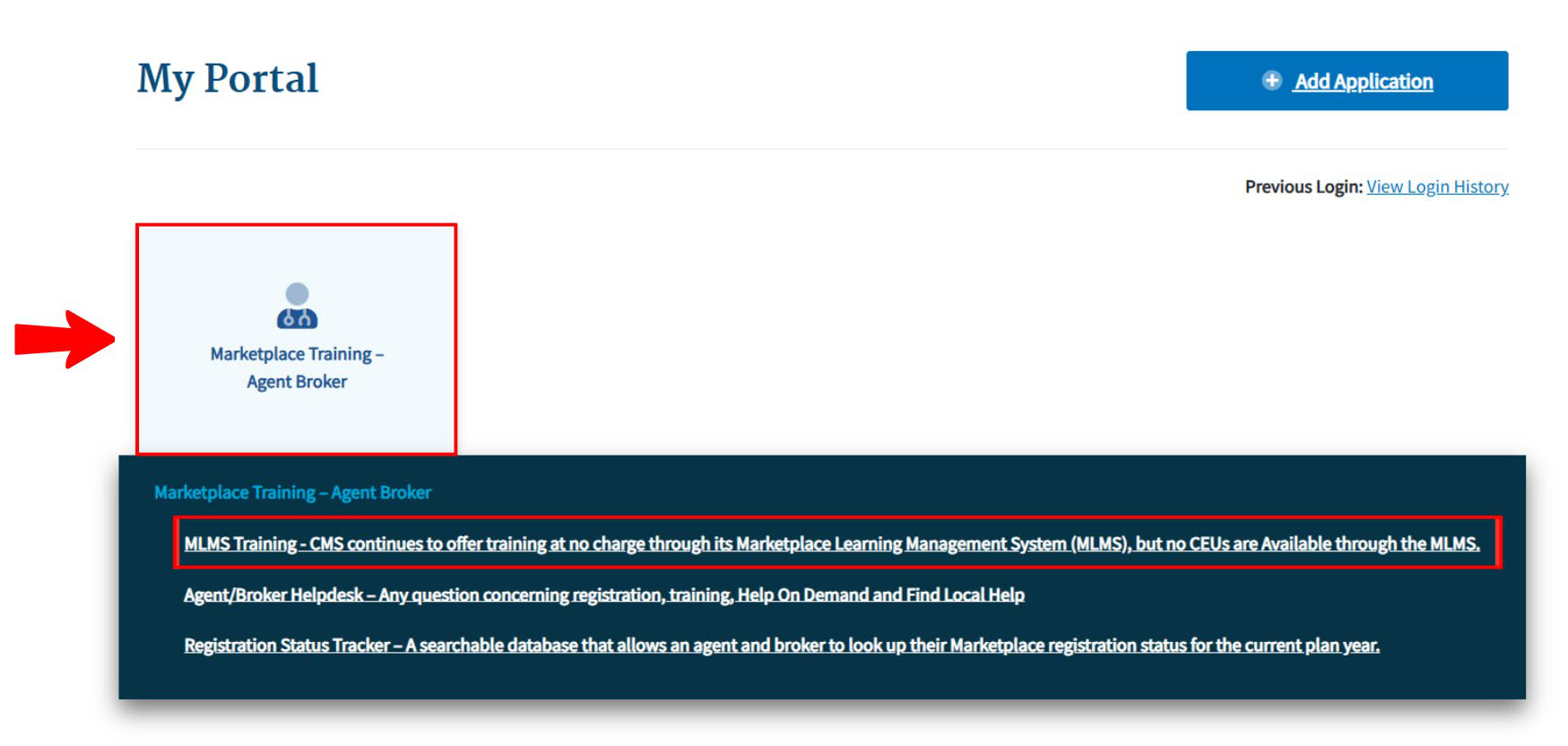
- From the CMS Enterprise Portal, select the Marketplace Training – Agent Broker tile.
- Select MLMS Training.
- Review and update your Agent and Broker Profile.
Select the Correct User Role
Select the appropriate user role from the options provided in your profile.
If you do not intend to assist consumers with enrolling in Marketplace coverage, select Not an Agent Broker. You may return later and update this selection if you decide to participate.
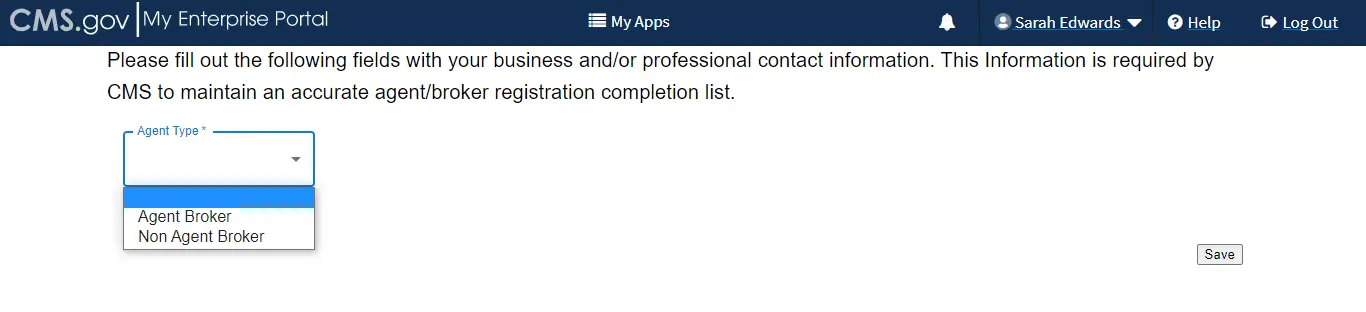
Important: If you intend to assist consumers with Marketplace coverage, you must select the appropriate agent/broker role. Otherwise, you will not be eligible to participate in the Marketplace for Plan Year 2027 or receive compensation for assisting consumers with Marketplace enrollments.
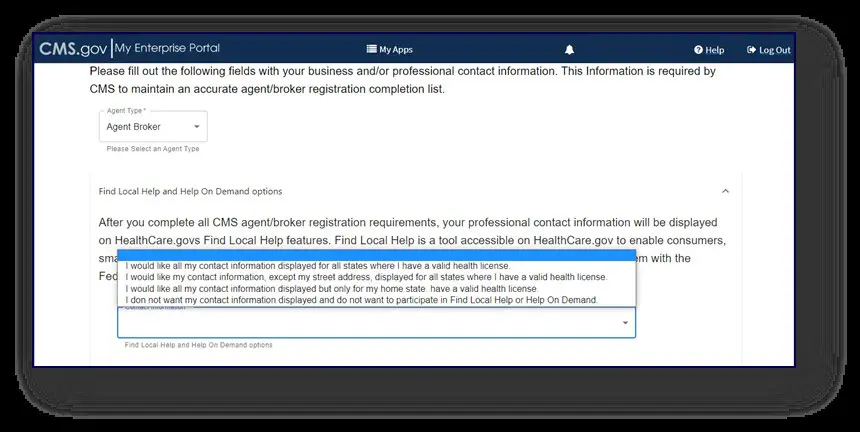
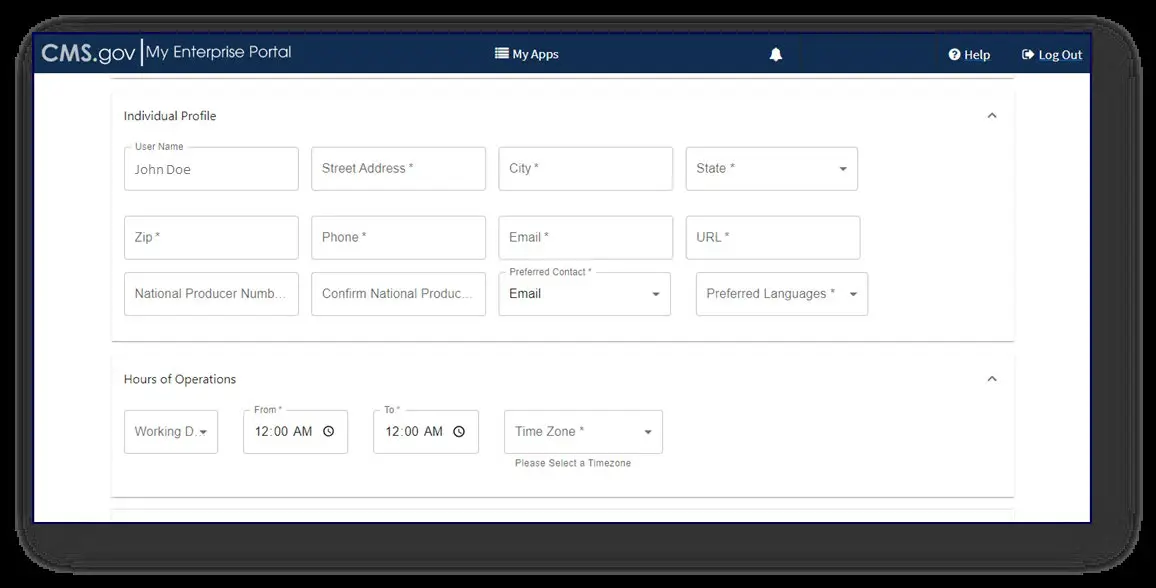
Review Your Contact Information
Complete your business and/or professional contact information carefully. Information from your MLMS profile may also be used for consumer-facing tools such as Find Local Help and Help On Demand.
Verify Your National Producer Number (NPN)
A correct NPN is required to receive credit for completing Marketplace registration.
- Your NPN may contain up to 10 digits.
- It must not begin with zero (0).
- Do not include letters or special characters.
- Your NPN is not the same as your state license number.
You can look up your NPN using the NIPR NPN Lookup.
Important: Confirm your NPN carefully. An incorrect NPN could result in denial of compensation or registration credit by an issuer.
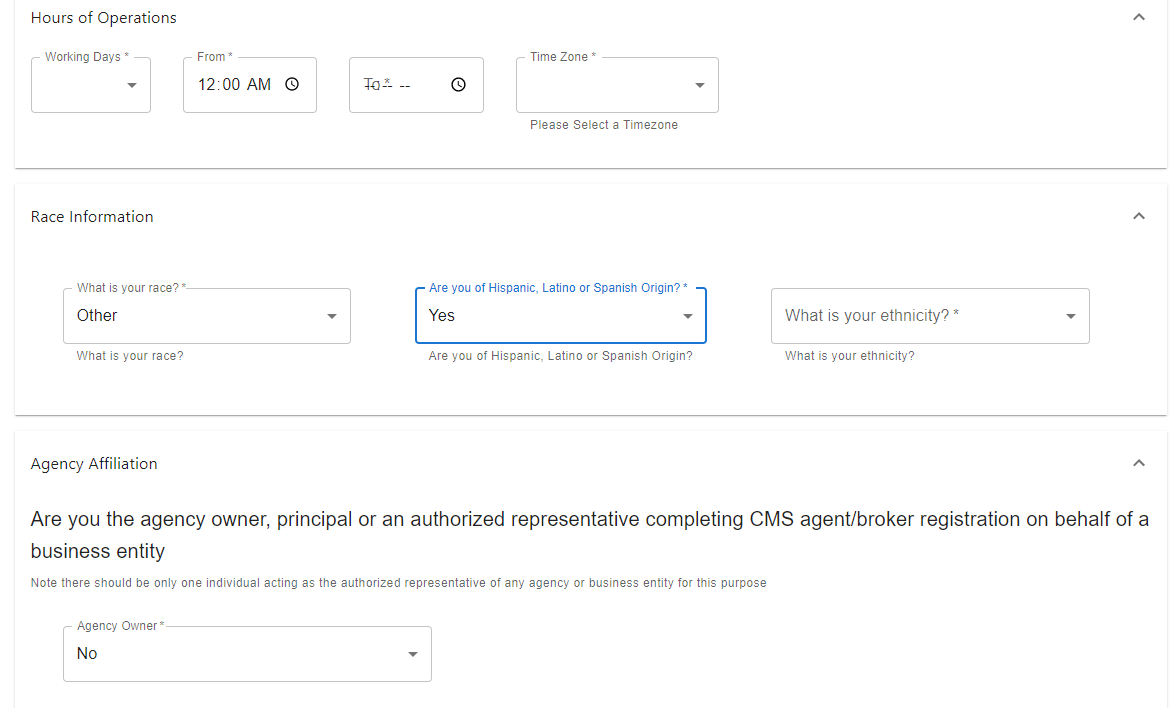
Complete the Remaining Profile Information
The profile also includes optional race and ethnicity questions. CMS uses this information to better understand the communities served by agents and brokers.
Business Entity and Web-Broker NPNs
Agents or brokers who are also the authorized representative of a business entity or web-broker may add the organization’s NPN to their MLMS profile. Up to three NPNs may be listed.
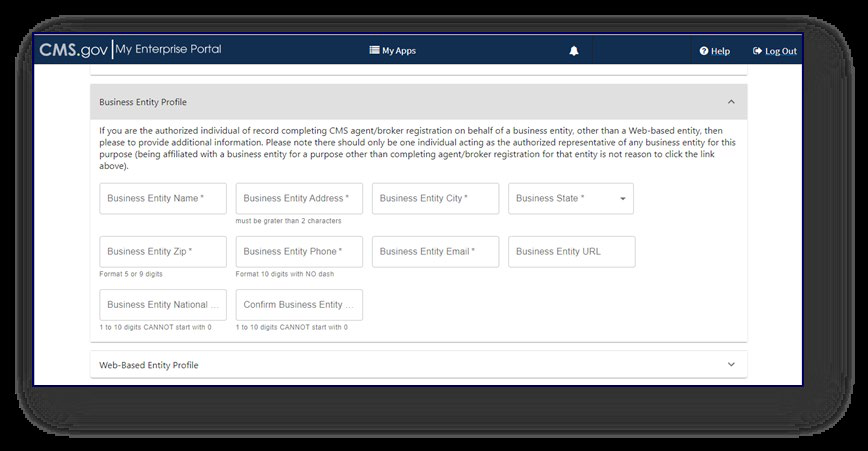
Only enter a business or web-broker NPN when:
- The NPN belongs to a business entity, such as an LLC, corporation, or partnership, registered with a state for the purpose of selling health insurance; and
- You are the authorized individual or agent in charge associated with the entity’s state license.
Do not enter an individual NPN in the business or web-broker NPN field. Simply being employed by or affiliated with an agency does not make you its authorized representative.
Only individuals who sign a web-broker agreement should complete the web-broker section of the profile.
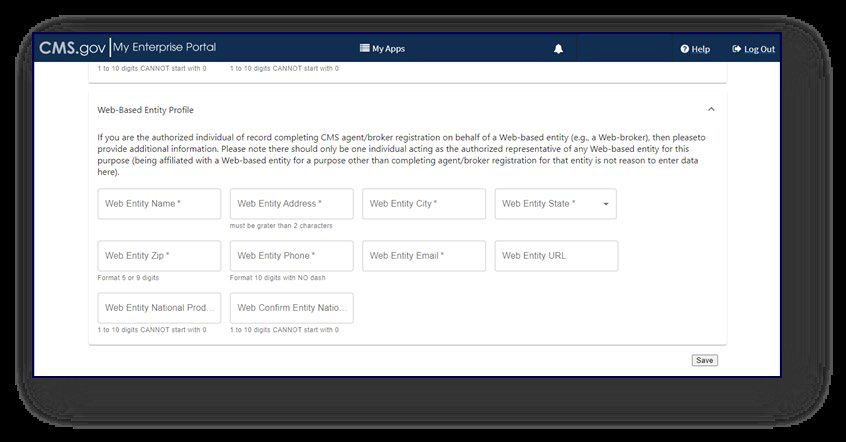
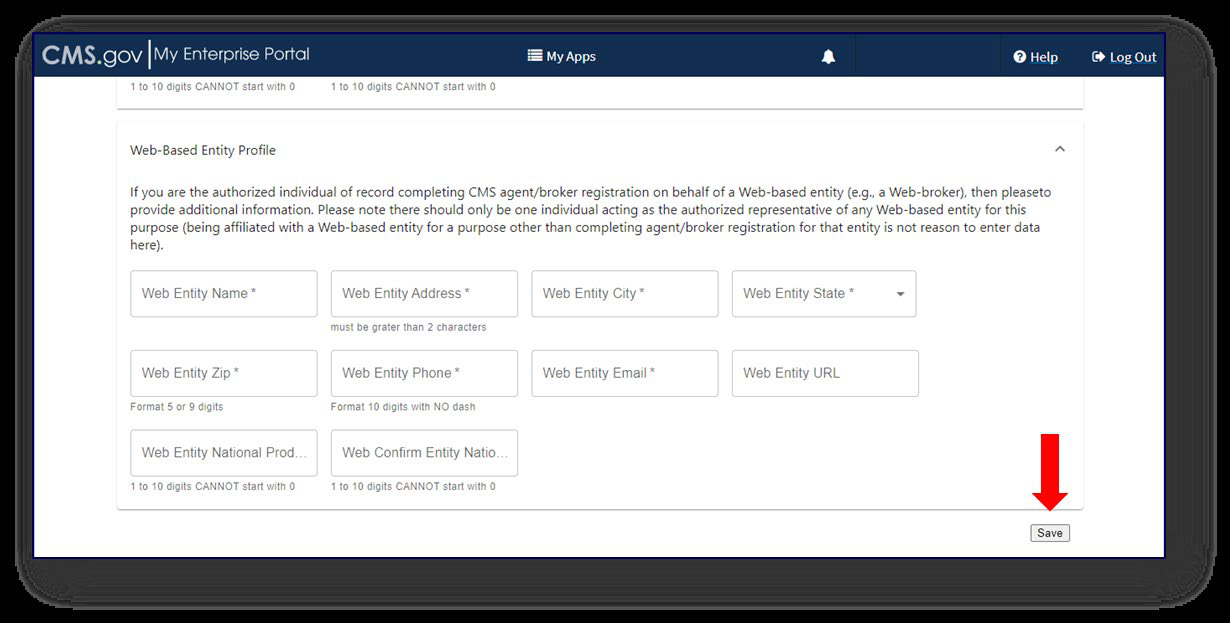
After reviewing all profile information, select Save.
Confirm Your Licensing and Line of Authority
CMS validates NPN and licensing information against the National Insurance Producer Registry (NIPR).
To be successfully validated, agents and brokers must:
- Have a valid state license.
- Have a valid health-related Line of Authority (LOA) in their resident state.
- Have an active status for that health-related LOA.
Some states may also require an appointment with a health insurance carrier before an NPN can be validated.
CMS identifies Florida, Hawaii, New Mexico, Texas, Utah, Vermont, Wisconsin, Nebraska, and Wyoming as examples of states that require agents and brokers to have an appointment with a health insurance carrier before their NPN can be validated.
Agents and brokers who do not have an approved health-related LOA, as determined by their resident state, may lose access to Marketplace systems and will not be able to assist consumers with Marketplace activities for Plan Year 2027.
You can review CMS’s resident-state requirements here:
Marketplace Agent/Broker NIPR Health Line of Authority Requirements
You can review or add a Line of Authority through NIPR:
NIPR – Add a Line of Authority
Step 5: Complete Marketplace Training in the MLMS
Returning Individual Marketplace agents and brokers are eligible for the condensed Marketplace Training for Returning Agents and Brokers.
The required portion of the returning-agent training takes approximately one to two hours to complete.
Returning agents and brokers are automatically enrolled in the returning curriculum. You may also enroll in additional training, including Small Business Health Options Program (SHOP) training.
Note: Marketplace training is required for participation in the Individual Marketplace. Agents and brokers participating in SHOP are encouraged, but not required, to complete SHOP training.
Returning Agent Training Requirements
The returning-agent curriculum consists of:
- One required training module
- One required exam
The exam contains 10 questions. You must receive a score of 70% or higher to receive credit for the course.
You only need to complete the required training once for each plan year.
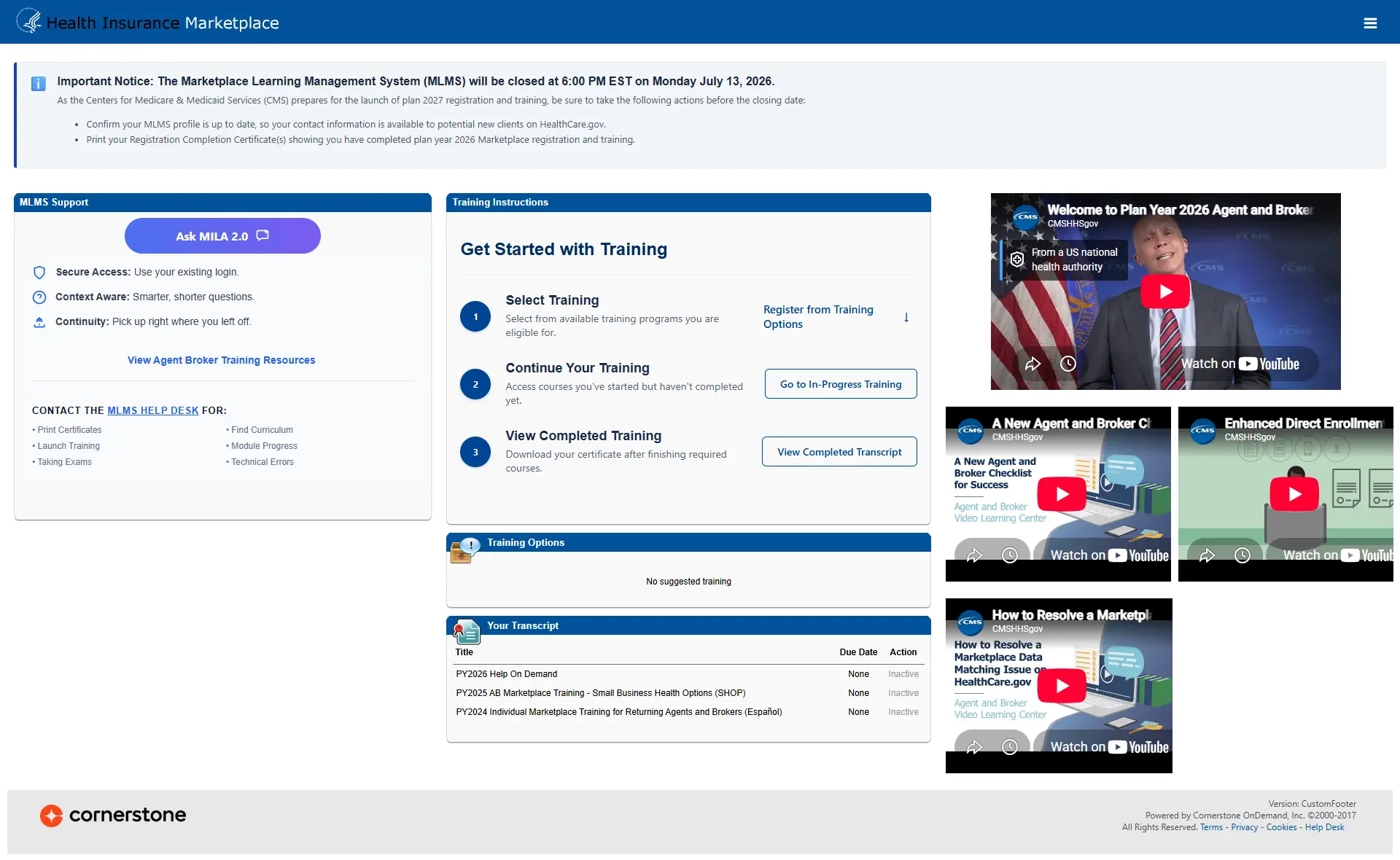
The full training curriculum can be accessed through the Training Options area on the agent and broker welcome page.
Confirm That You Are Eligible for Returning-Agent Training
Your NPN should appear on the Plan Year 2026 Agent and Broker FFM Registration Completion List in order to qualify for the returning-agent curriculum.
View the Agent and Broker FFM Registration Completion List
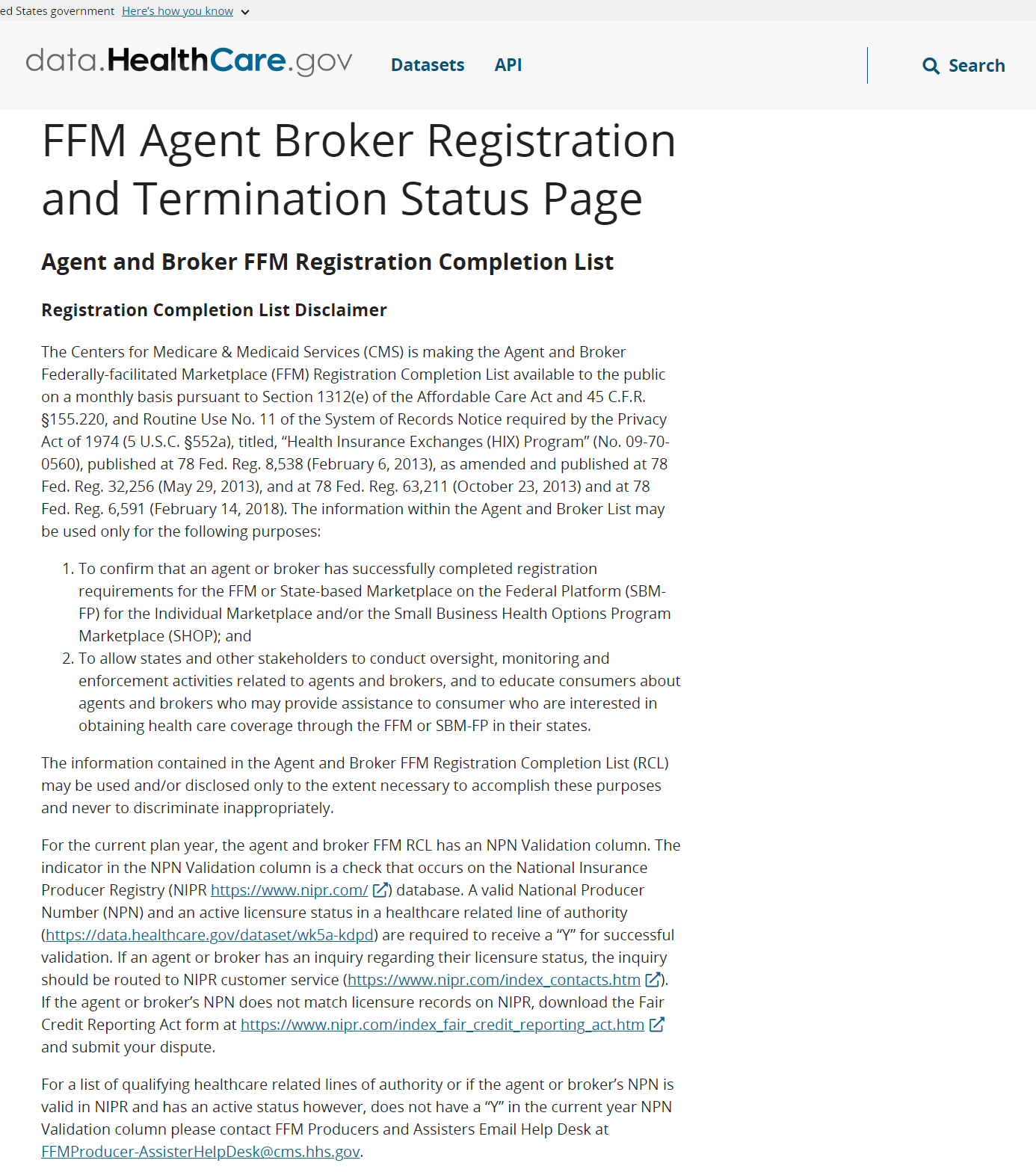
If you believe you completed Plan Year 2026 registration and training but do not appear on the list, contact the Agent/Broker Email Help Desk at FFMProducer-AssisterHelpDesk@cms.hhs.gov.
Returning agents and brokers should see the returning curriculum in Active status under View Your Transcript.
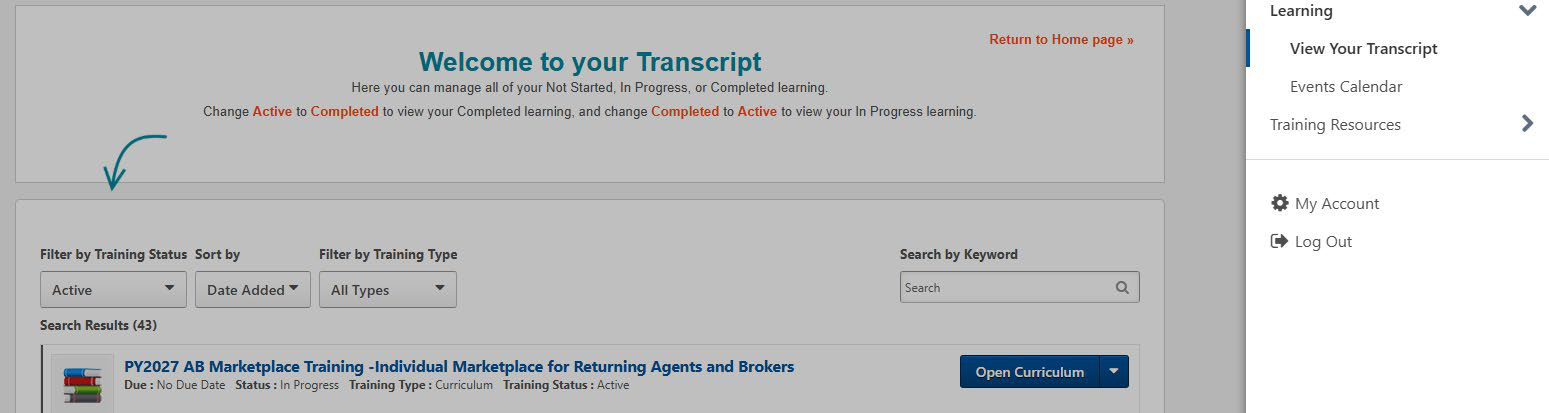
Step 6: Read and Accept the Applicable Marketplace Agreement(s)
After completing your profile, training, and required exam, you must execute the Marketplace Agreement(s) associated with the Marketplace programs in which you participate.
Applicable agreements may include:
- Individual Marketplace General Agreement
- Individual Marketplace Privacy and Security Agreement
- SHOP Privacy and Security Agreement
You must update your MLMS profile and complete the required training and exam before the system will allow you to sign the applicable agreement(s).
Step 7: Confirm Registration and Access Your Completion Certificate
After completing all registration and training requirements, confirm your completion status and obtain your Registration Completion Certificate.
Access Your Certificate
- Go to your MLMS Transcript page.
- Select Completed from the status drop-down menu.
- Locate the applicable course.
- Select View Completion Page.
- On the completion page, select View My Certificate.
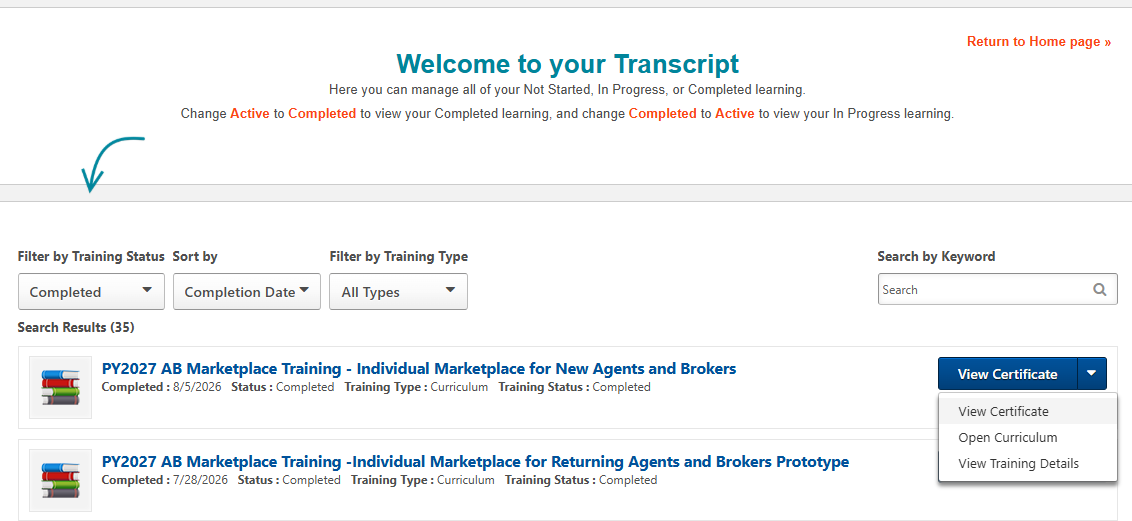
You may also be able to launch your certificate directly from the menu beneath the View Completion button.
Your Registration Completion Certificate Includes:
- Your name
- Your NPN(s)
- The applicable market segment(s)
- The plan year
- Your FFM registration completion date
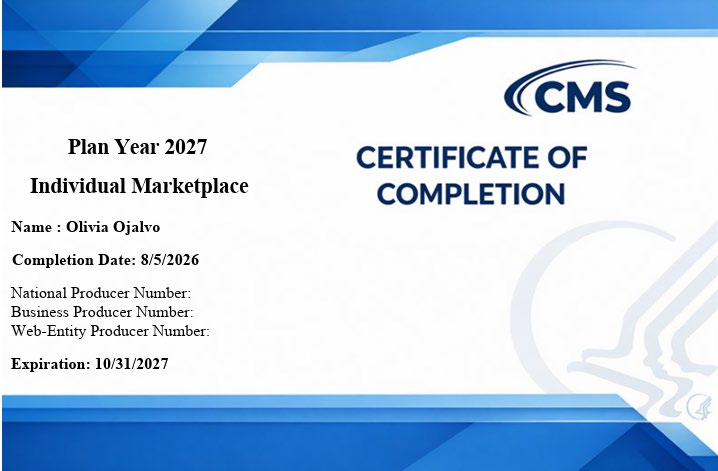
Issuers may ask to see your Registration Completion Certificate. However, issuers are also instructed to use the Agent and Broker FFM Registration Completion List to confirm registration status.
Download the Full Training Content
After completing the training, you can also access the full Plan Year 2027 training content from the Training Resources area of the MLMS.
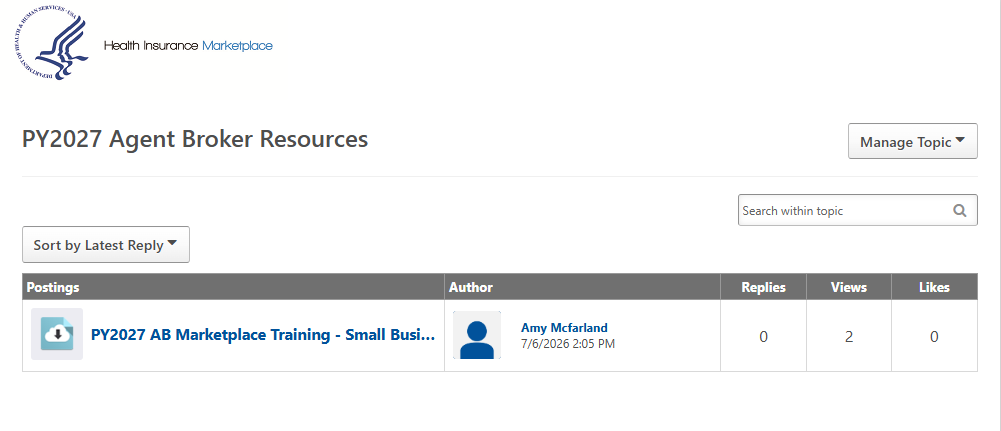
- Locate the Training Resources menu.
- Select the Topics tab.
- Open the PY2027 Agent and Broker Resources folder.
- Select the desired file to access the PDF training content.
Confirm Your Registration on the Completion List
After completing all steps, confirm that your information appears on the Agent and Broker FFM Registration Completion List.
It may take approximately one to two business days after completing registration and training for your information to appear on the list.
If you elect to display your information through Find Local Help, those updates may take up to three business days.
If your NPN does not appear, use the Marketplace Registration Tracker.
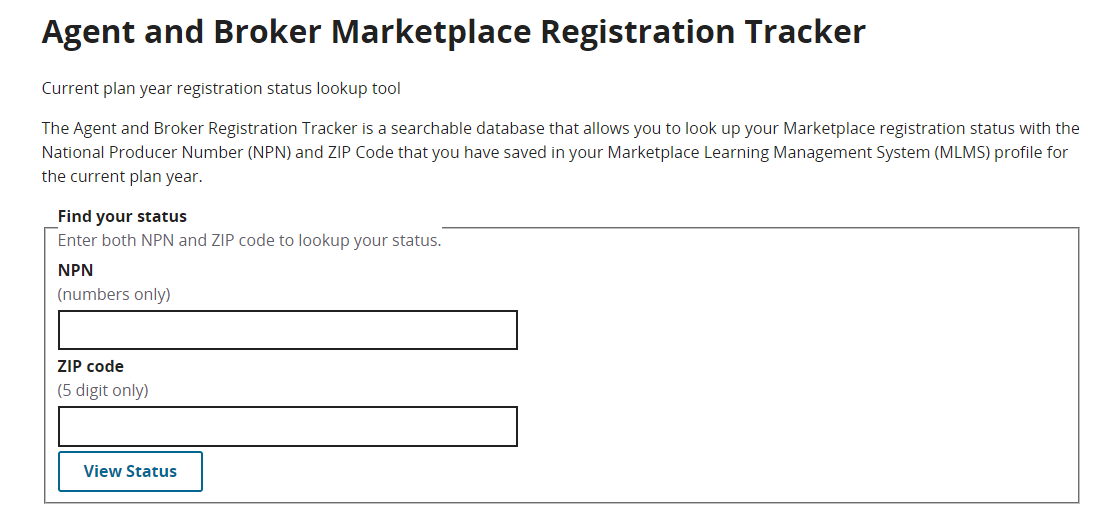
Enter your:
- NPN
- ZIP code
The Registration Tracker is updated daily by approximately 5:00 PM ET.
If you still need assistance, contact FFMProducer-AssisterHelpDesk@cms.hhs.gov.
Important CMS Login and Security Reminders
- Do not attempt to access CMS systems from outside the United States or its territories while registering or completing Marketplace training.
- Only the person who created a CMS Enterprise Portal account may use those login credentials.
- Do not share CMS, Login.gov, ID.me, EDE, password, or multi-factor authentication credentials.
- Make sure your EDE account is properly linked to your personal CMS Enterprise Portal account.
- EDE platforms must reauthenticate agents and brokers after 30 minutes of inactivity.
- Do not remain logged in on multiple devices or use multiple simultaneous sessions with the same credentials.
Additional Resources
- CMS Marketplace Registration and Training Resources
- CMS Enterprise Portal
- Agent and Broker FFM Registration Completion List
- Marketplace Registration Tracker
- Look Up Your NPN
- CMS Help On Demand
Need help? Contact the CMS Agent/Broker Email Help Desk at FFMProducer-AssisterHelpDesk@cms.hhs.gov.
Disclaimer: This information summarizes CMS guidance for Plan Year 2027 and is intended as a convenient reference. CMS guidance, regulations, and system requirements should be consulted for complete and current information. These instructions generally apply to Federally-facilitated Marketplaces (FFMs) and State-based Marketplaces on the Federal Platform (SBM-FPs).